 Diado for DaVinci Resolve
Send your cut.
Get comments in Resolve.
Diado is file sharing and client review for filmmakers and creative teams.
Send your cut from Resolve Studio. Bring feedback back to your timeline.
DaVinci Resolve Studio 20.1 or later · macOS 12 or later
Timeline and client feedback
Ísfall — Brand filmTimeline 01

A little further.
01:00:08:0000:08 / 00:3030 fps
00:0000:1000:2000:30
Brand film.mov
Soundtrack.wav
Resolve Studio
SendComments 2
Brand filmÍsfall campaign · 00:30 · 30 fps
Version 3 · LatestChanges requested
Add markers, then click a comment to move the playhead.
Try a timestamp, add markers, or resolve a note.Illustrative interface preview
Your client watches.
Notes stay with the cut.
Send a project link. Your client opens the film in their browser and leaves a comment on the frame they mean. They can draw on the image, reply to a conversation, and approve a version.
Reviewers don’t need a Diado account or a seat on your plan.
See review and approval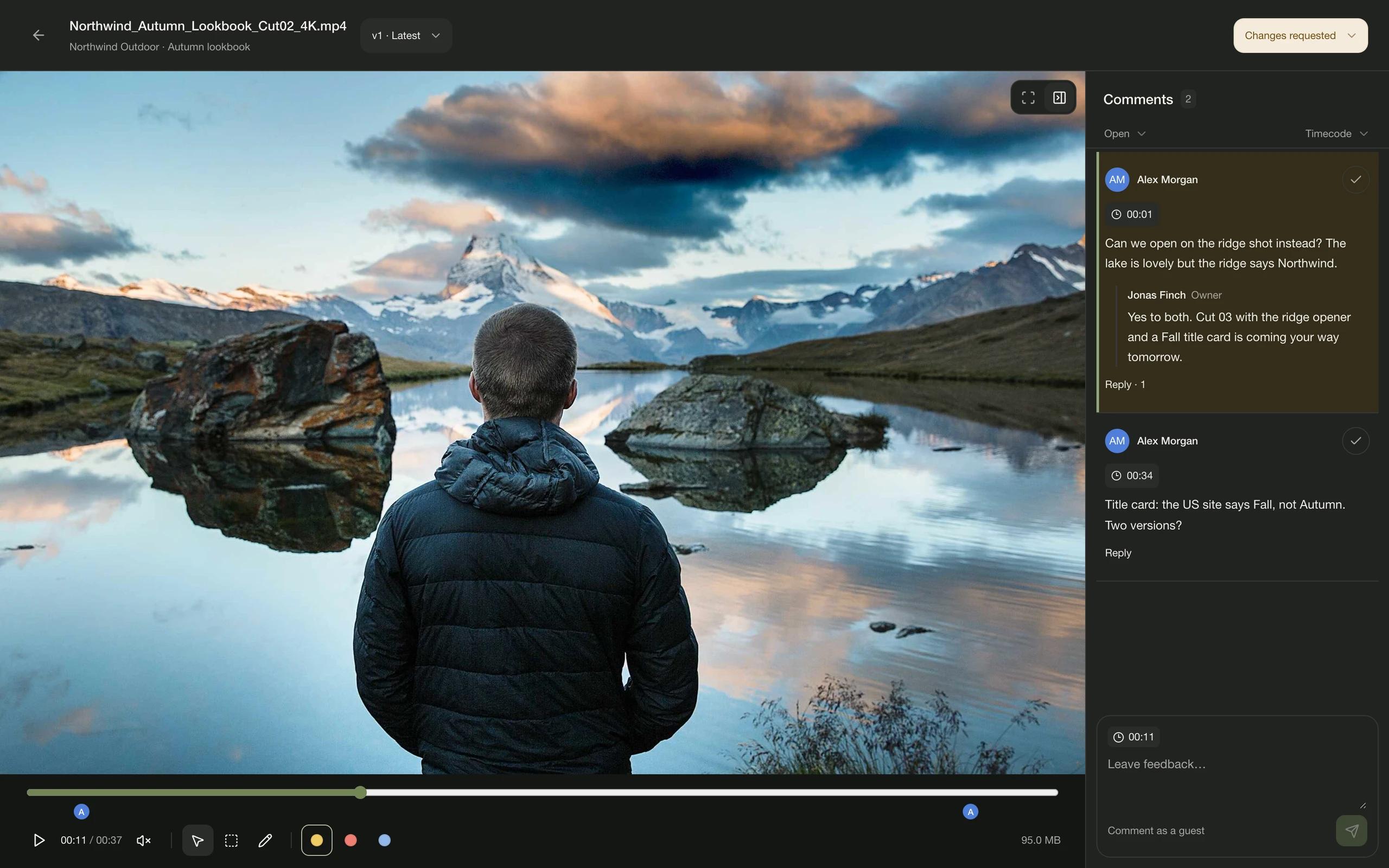
The next cut.
The same review link.
Send a revision as a new version of the linked file. Your client returns to the same project page, and the previous cuts stay together with their own comments.
Switch versions in the plugin to read the right feedback. Review decisions belong to each version, so you can see which cut was approved.
Brand film.mov
v4
In reviewLatest cut
Latestv3
Changes requested2 client comments
v2
ApprovedEarlier version
One file. Each cut and its feedback.

Deliver the final files.
Under your brand.
Keep the final film, stills, and supporting files in a shared project. Let your client download what they need, and turn feedback on when you want a review.
Use a branded page with your own logo and imagery, or send a direct download link for a one-off delivery.
See custom brandingTry it on
your next cut.
Share a cut with your client and bring their feedback into Resolve. Try it with a 14-day Pro trial.
- 1
Install the plugin
Open the Mac installer and follow the steps. It asks for your Mac’s password to install in Resolve’s shared plugin folder.
- 2
Restart Resolve and open Diado
Go to Workspace → Workflow Integrations → Diado.
- 3
Connect your account
Sign in through your browser, then return to Resolve. Your projects are ready to choose from.
A few practical things.
Does it work with the free version of Resolve?
The plugin requires DaVinci Resolve Studio 20.1 or later. The free version of DaVinci Resolve doesn’t support this Workflow Integration.
Can I send a render I’ve already made?
Yes. A render made on the Deliver page can be sent as it is, without rendering the timeline again.
Can I choose what to render?
Yes. Choose a Resolve render preset and send either the whole timeline or your In to Out range. You can upload to an existing project or create a project from the plugin.
What is included in the trial?
The 14-day Pro trial lets you try Diado with 500 GB of storage per seat and custom branding. A card is required; cancel before the trial ends to avoid a charge. The plugin connects to your Diado account.
How do I update or uninstall it?
The plugin lets you know when an update is available. Download the latest installer here and install it the same way. To uninstall, remove the com.diado.resolve folder from /Library/Application Support/Blackmagic Design/DaVinci Resolve/Workflow Integration Plugins.
Is there a Windows version?
The plugin is currently available for Mac. Windows packaging and testing are not yet complete.