Find the right file
Find projects by name, check versions, and open files with their comments and review status. No searching through links.
 ChatGPT
 Claude
Connect Diado to ChatGPT or Claude. Find a client’s latest notes, open the cut they’re talking about, and save your reply from the chat you’re already in.
Northwind · Autumn lookbook
Diado’s MCP connector gives your assistant access to the workspace you’ve signed into. It can look up files, read review threads, and make the changes you ask for.
Find projects by name, check versions, and open files with their comments and review status. No searching through links.
Ask for a summary of open feedback. Reply to a thread, leave a timestamped comment, or mark a note resolved after you’ve made the change.
Check sends and download links, create an upload request, or share a project with the download and comment settings you need.
In an MCP Apps-compatible host, Diado can open a review panel with the player and comments. Pause the film, then ask the assistant to save your note at that moment.
You can also give an exact timecode. Each note belongs to the file and version you’re reviewing, ready for your teammate to pick up.
See review and approval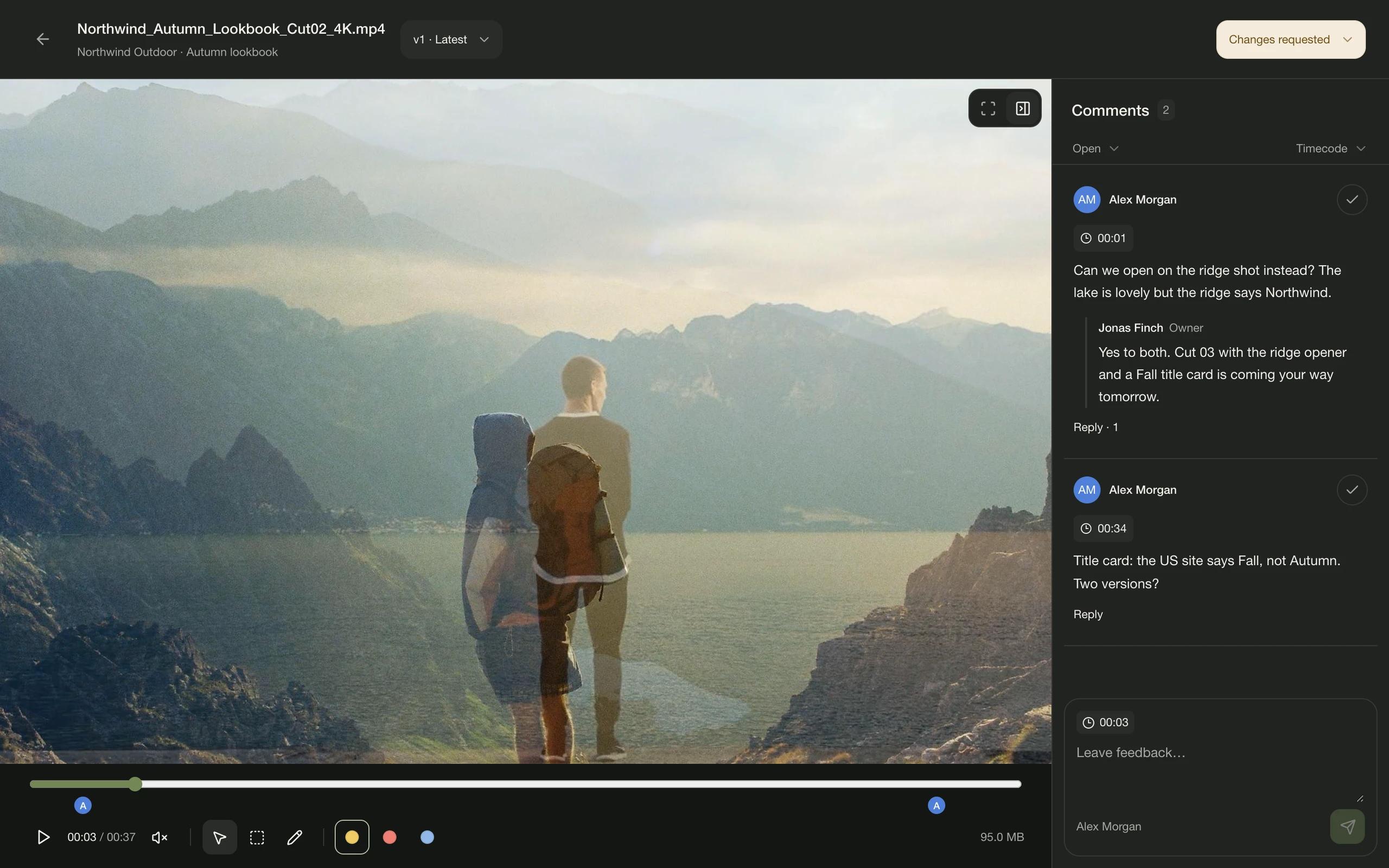

Save a timestamped comment through ChatGPT or Claude. Open the linked timeline in Diado for Resolve, then sync those notes as markers to jump to the frame.
Meet Diado for ResolveThe comment is saved on the file in Diado.
Sync this version’s notes to the timeline.
Continue the thread from chat, or reply and resolve it in the plugin.
Open Integrations in Diado for the current connector address and setup instructions. You’ll sign in to your Diado account when you connect it to your assistant.
Select ChatGPT or Claude in Diado’s Integrations page and copy the connector address.
Follow the instructions for your AI app. Your assistant uses the permissions of the Diado account you connect.
Try “Anything new in Diado?” or “Show me the open comments on the Northwind project.”
MCP stands for Model Context Protocol. It lets an assistant use tools from a connected service. Diado’s connector gives it tools for your projects, files, sends, upload requests, and comments. You connect your own Diado account and ask for the work you want done.
An attachment in your AI chat does not automatically become a Diado upload. The remote connector manages files already in Diado and can create upload requests. To find and upload files from your computer in chat, use the local Diado companion with Claude Desktop, Claude Code, or Cursor. It prepares the destination and asks you to confirm before uploading, including when adding a new version.
The review panel lets you view the file while working in a compatible chat. You can ask the assistant to save your feedback at a timecode. Opening a file does not mean the model has watched every frame, and the current project connector does not approve versions on a client’s behalf.
Comments saved through the connector are part of the same Diado review. The Resolve plugin refreshes its Comments list while that tab is visible. Use Sync markers to add or update timeline markers. Automatic marker syncing directly from MCP is not currently available.
No. Diado does not use your files or comments to train AI models. When you connect an assistant, information used in your conversation is subject to that provider’s terms and privacy settings.
The connector is designed for compatible MCP clients, including ChatGPT and Claude. Available connection options depend on your AI provider, plan, and workspace settings. Embedded file viewers also depend on the host supporting MCP Apps.