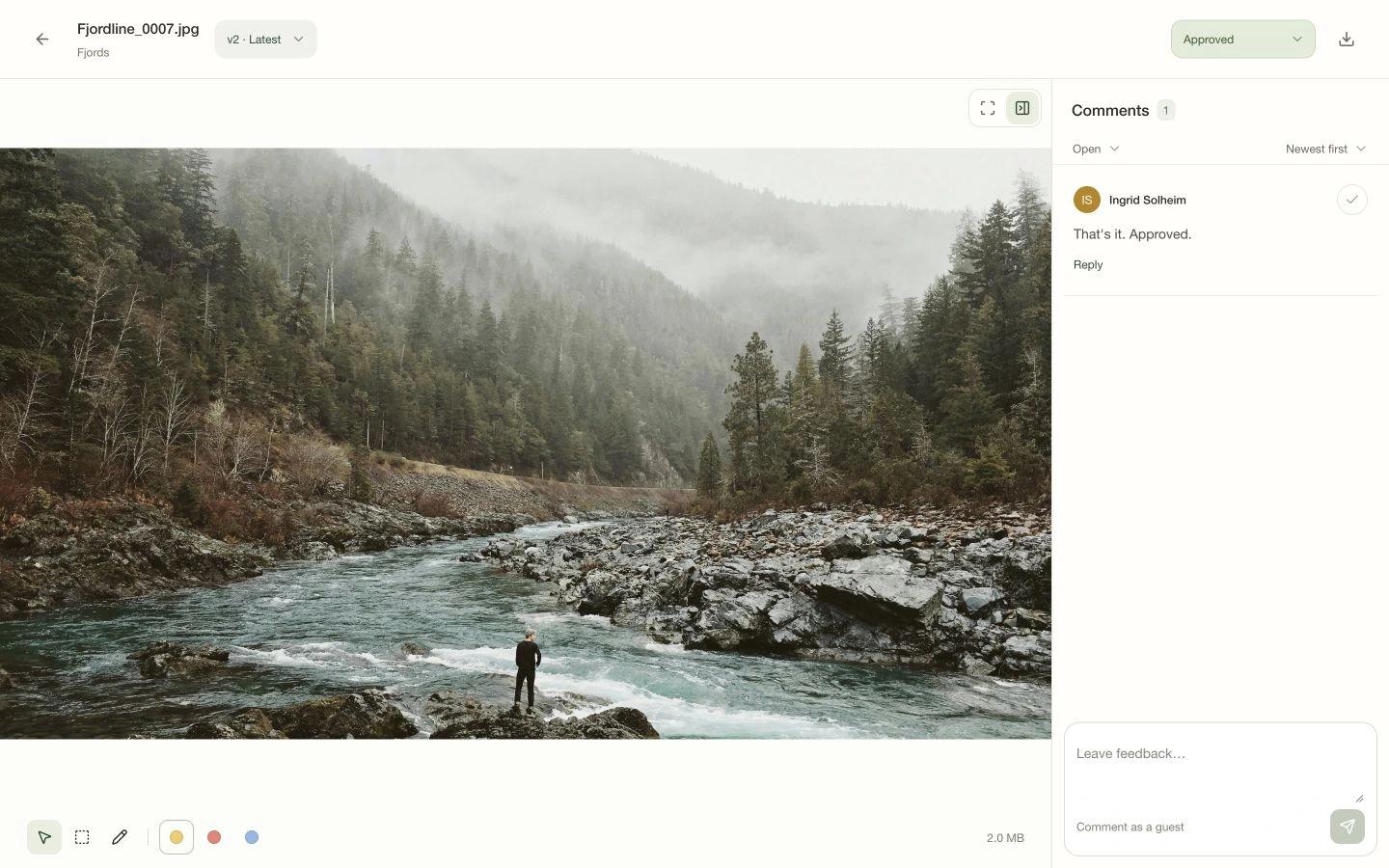
Add a new file version
Upload a revision to an existing file, then switch between versions to check earlier feedback.
In this guide
1. Open the existing file2. Upload the revision3. Check the version history4. Continue on the same link1. Open the existing file
Open the project and select the file you’re updating. Add the revision from the file viewer to keep it in the existing file’s version history.
2. Upload the revision
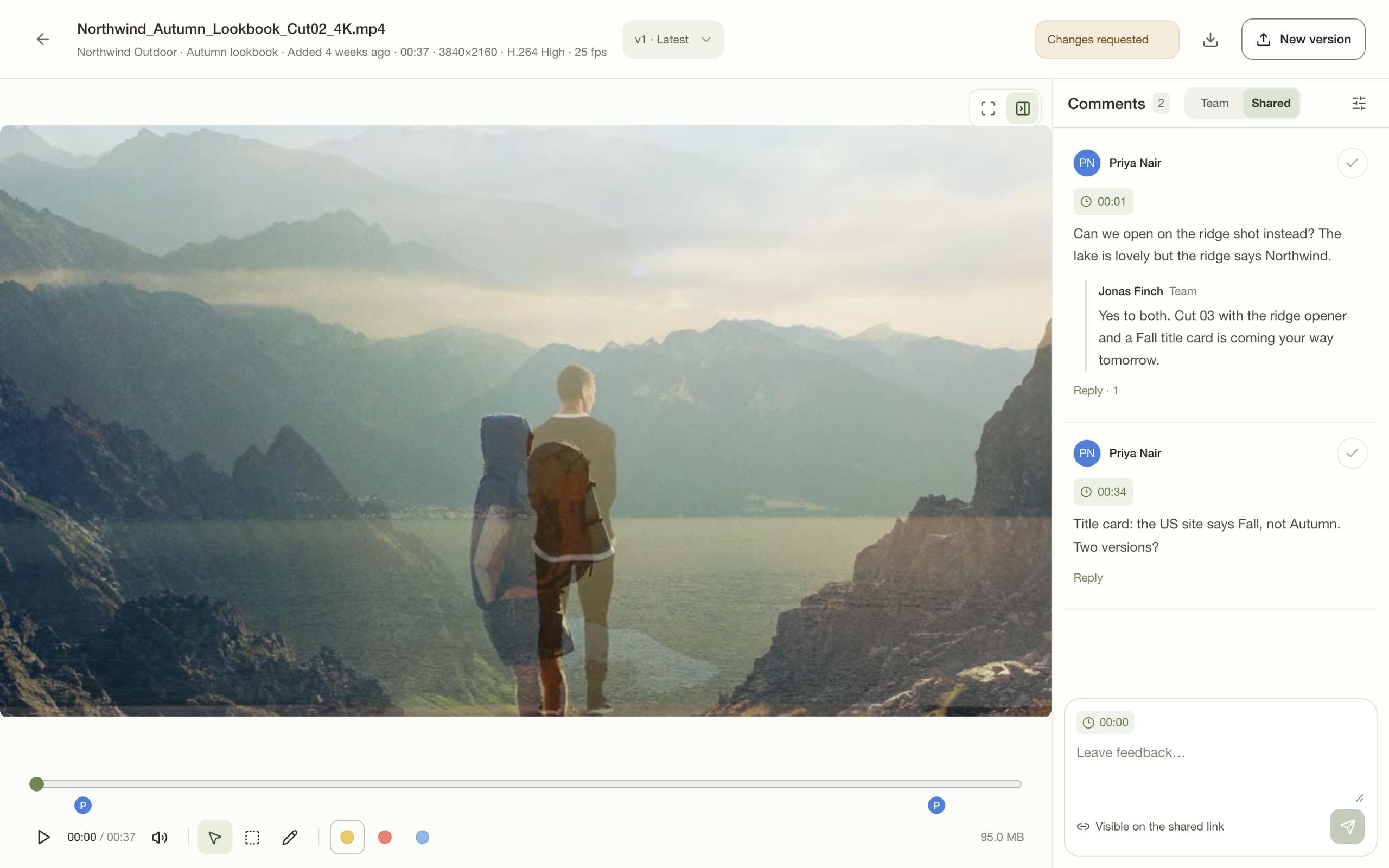
Select New version in the file viewer, or Upload new version from the file’s menu in the project, and choose the revised file. Let the upload finish before asking your client to review it.
When you upload a similarly named file into a project, Diado may also ask whether it should become a new version or stay separate. Check which file it will update before choosing.
3. Check the version history
Use the version picker to switch between the new file and earlier versions. Each version keeps its own feedback and review status.
You can open or download an older version when you need to check a detail.