View a project’s download history
See downloads from your shared project page and change download access.
In this guide
Open Download historyCheck counts per project, file, or folderCheck what the record can tell youChange future accessOpen Download history
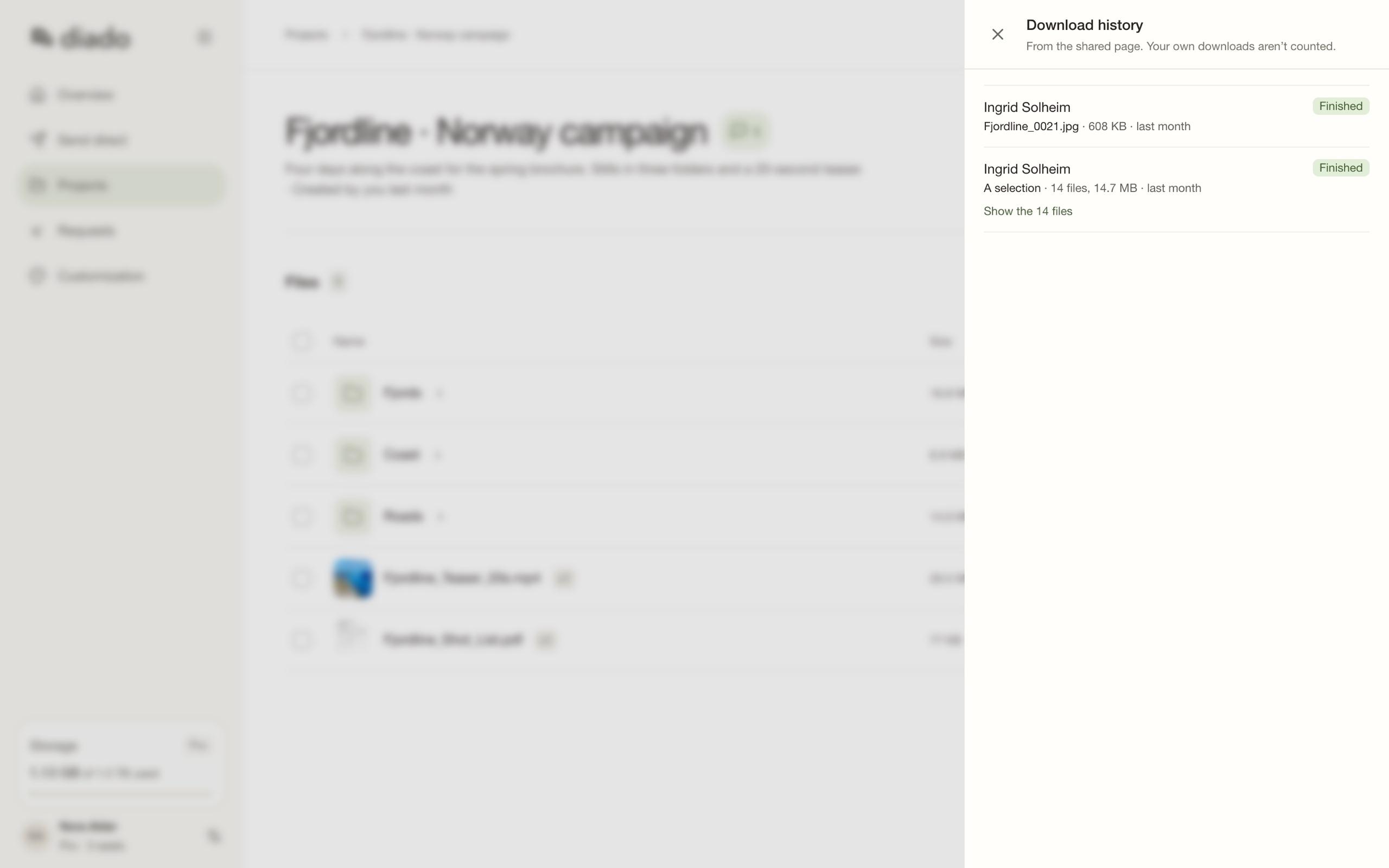
Open the project, open its menu, and select Download history. Each entry shows who downloaded, which file or selection they took, and, where known, the city and country the download came from.
This record is separate from comments, approvals, and version history.
Check counts per project, file, or folder
The Projects list has a Downloads column with a count for each project. Inside a project, every file and folder has its own count. Select a count to open the downloads behind it. The column is hidden in narrow windows.
A file’s count covers all of its versions. A folder’s count is the number of downloads that included something inside it, so a zip of the whole folder counts once.
Only downloads from the shared page are counted. Files you or your teammates download inside Diado are left out.
Check what the record can tell you
Anyone with the shared link can forward it. The history records downloads from the page, but cannot guarantee who used the link.
The project’s creator receives in-app notifications for guest downloads; project downloads do not send download-receipt emails.
Change future access
Open sharing settings and switch Download files off if guests should only preview or review. Turn off the link if nobody outside the team should access the page.
Changing access cannot remove copies that someone already downloaded.