Check who downloaded a send
Check which files were downloaded and whether the recipient collected the delivery.
In this guide
Open the send’s download recordCheck downloads for one fileIdentify downloads from recipient linksTurn download emails on or offOpen the send’s download record
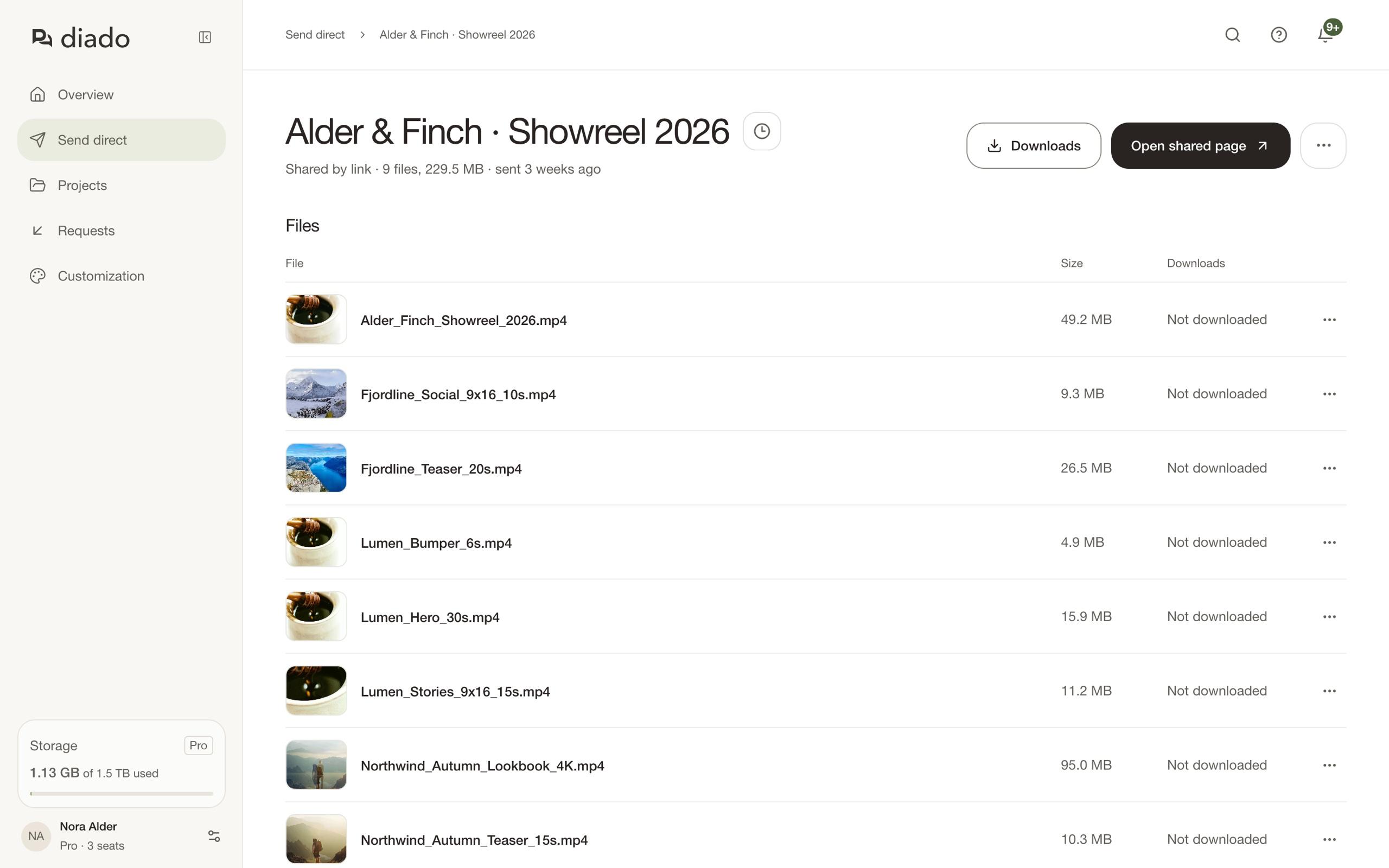
On Send direct, the Downloads column shows whether each send has been downloaded. Select a count there, or open the send and select Downloads, to see the download history. Each entry shows who downloaded, what they took (one file, a selection, or everything), and, where known, the city and country it came from.
A link view does not confirm a download. Where Diado can follow a download, its entry is marked Started, Stopped, or Finished, so you can see whether it completed.
Check downloads for one file
On the send’s page, each file shows how many downloads included it. Select the count to see those downloads.
Downloads you make yourself are not counted and do not send a notification.
Identify downloads from recipient links
Each email recipient gets their own link. A copied link can be forwarded, so its download record cannot confirm who used it.
The location is worked out from the downloader’s internet connection, so treat it as approximate.
Turn download emails on or off
Open the account menu and select Notifications. Use Your sends are downloaded to turn download emails on or off. In-app notifications remain available.
The first download by a recipient can trigger an email. The activity record is the place to inspect subsequent downloads.