Update an existing send
Change a send’s details or files while keeping the link you already shared.
Edit the delivery details
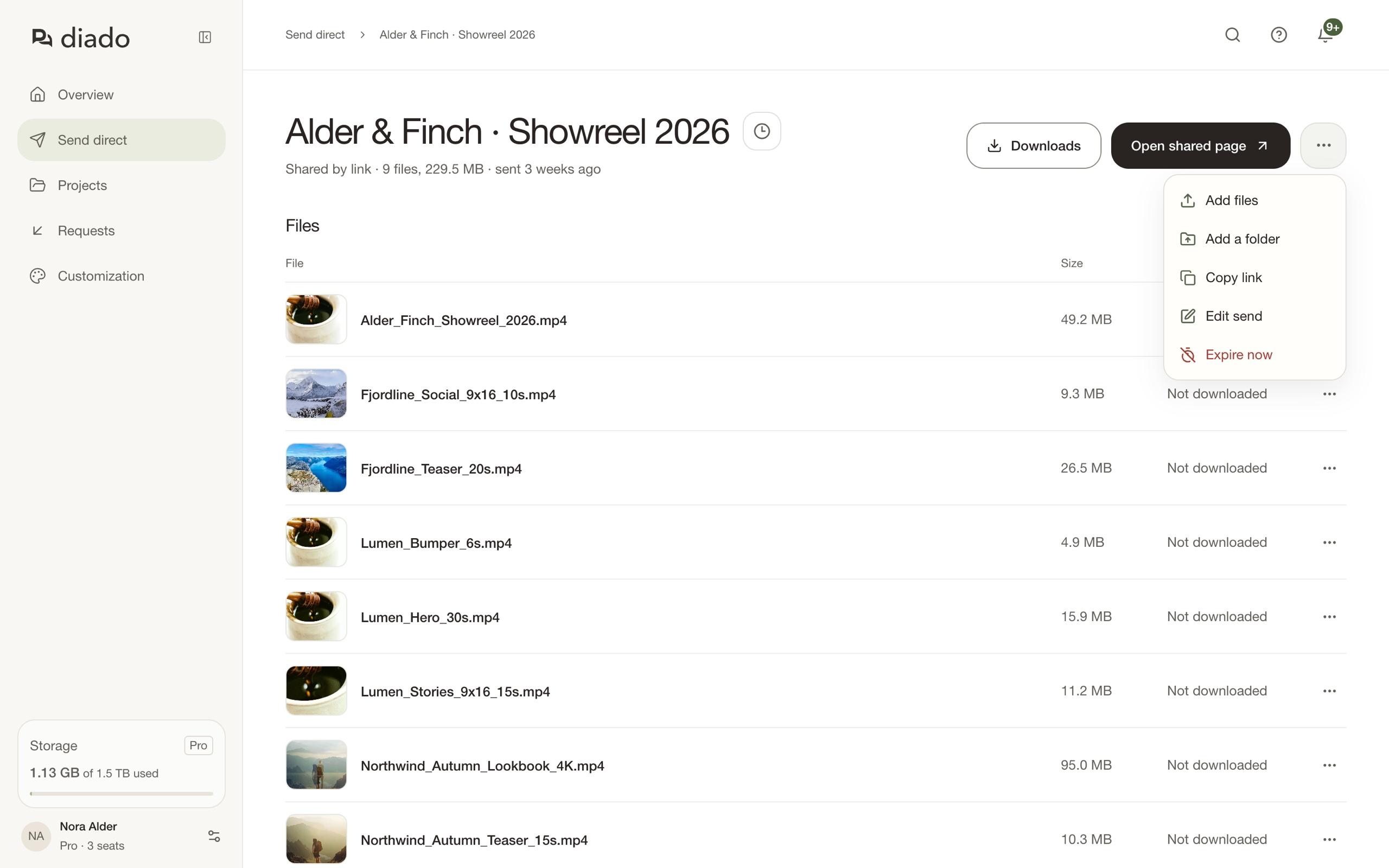
Open the send from Send direct, open its menu, and select Edit send. You can change its title, message, availability, password, download page template, and delete-after-download setting.
Save to apply the changes to the link already shared with recipients.
A send can be edited while it is available. Once it has expired, only its download history remains.
Add or remove files
To add files, open the send’s menu and select Add files or Add a folder. To remove a file, open its menu and select Delete file. Check the updated list before asking recipients to download.
Editing a send does not add email recipients. Check the delivery information to see who received the link.
Check the recipient page
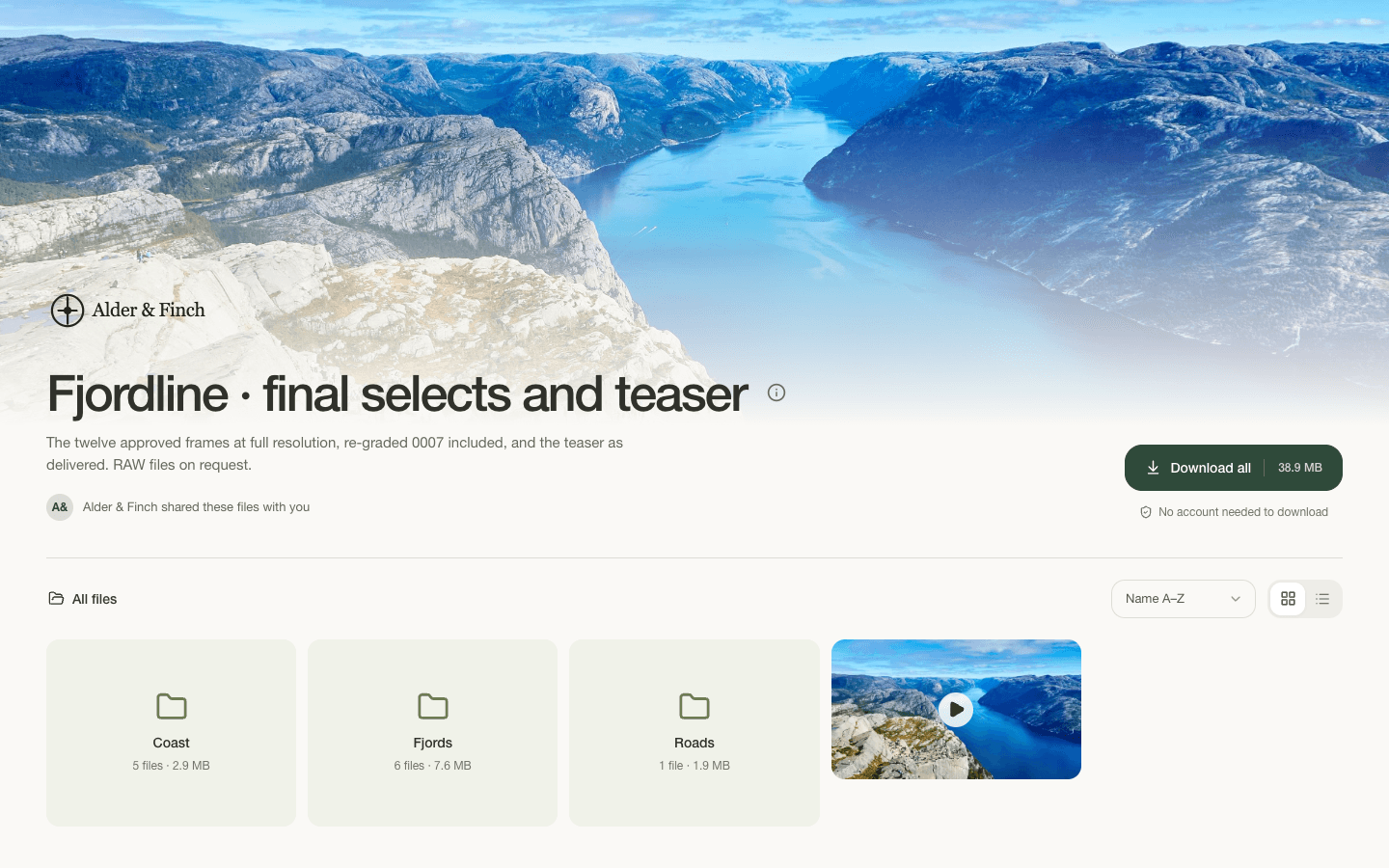
For a send shared by link, select Open shared page to see the files and design as recipients do. Tell recipients directly if you changed something they need, such as the password.