Open a file on the shared page with Comment and review enabled. Pause a video at the relevant moment before adding your note.
Use the drawing tools to mark the area you mean. Add a comment explaining what needs to change.
Reply in the same thread
Reply to a comment to continue that discussion. Start a new thread for a different change.
Your name stays with the comment. Guests are asked to identify themselves before leaving feedback.
Resolve or reopen a thread
Select Resolve thread when you have addressed the feedback. To find it later, use the Resolved filter. Select Reopen thread if more work is needed.
Resolving a thread does not approve the file. Review decisions are a separate action.
Comment in Team or Shared
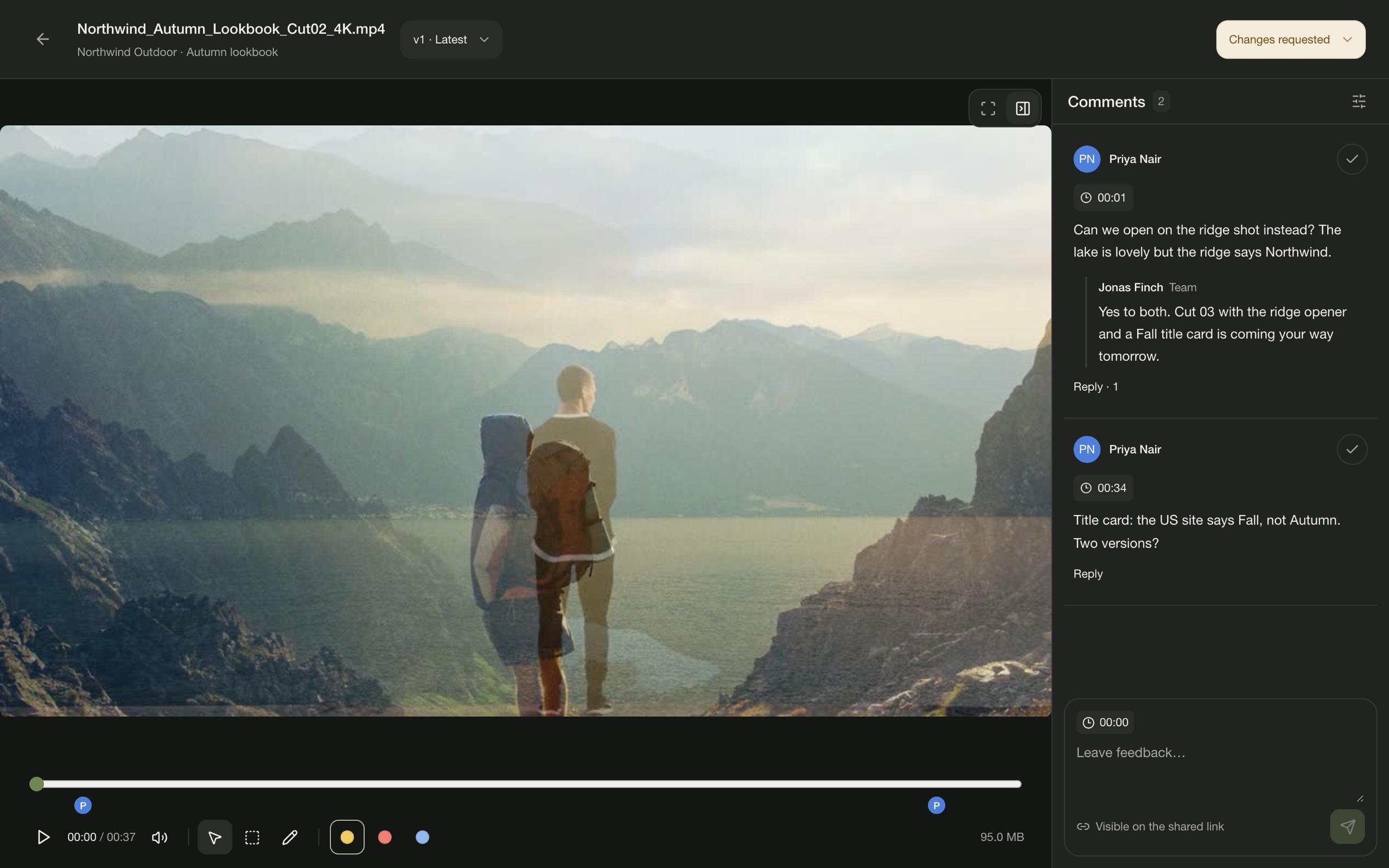
You and your teammates can also review from inside the project. Open a file there to get the same player, drawing tools, and threads, with a Team / Shared switch beside the comments.
Team comments are visible only to people in your account. Shared comments appear on the shared page. Replies, annotations, and resolving work the same way in both, and switching keeps your file, version, and position.
The line under the comment box shows who will read your comment before you post it. In a team account, the Projects list has a Comments column with each project’s total, Team and Shared together.
Comment in Team or Shared
You and your teammates can also review from inside the project. Open a file there to get the same player, drawing tools, and threads, with a Team / Shared switch beside the comments.
Team comments are visible only to people in your account. Shared comments appear on the shared page. Replies, annotations, and resolving work the same way in both, and switching keeps your file, version, and position.
The line under the comment box shows who will read your comment before you post it. In a team account, the Projects list has a Comments column with each project’s total, Team and Shared together.