Send files by email or link
Add files, choose an expiry date, and send a download link by email or copy it yourself.
1. Add the files
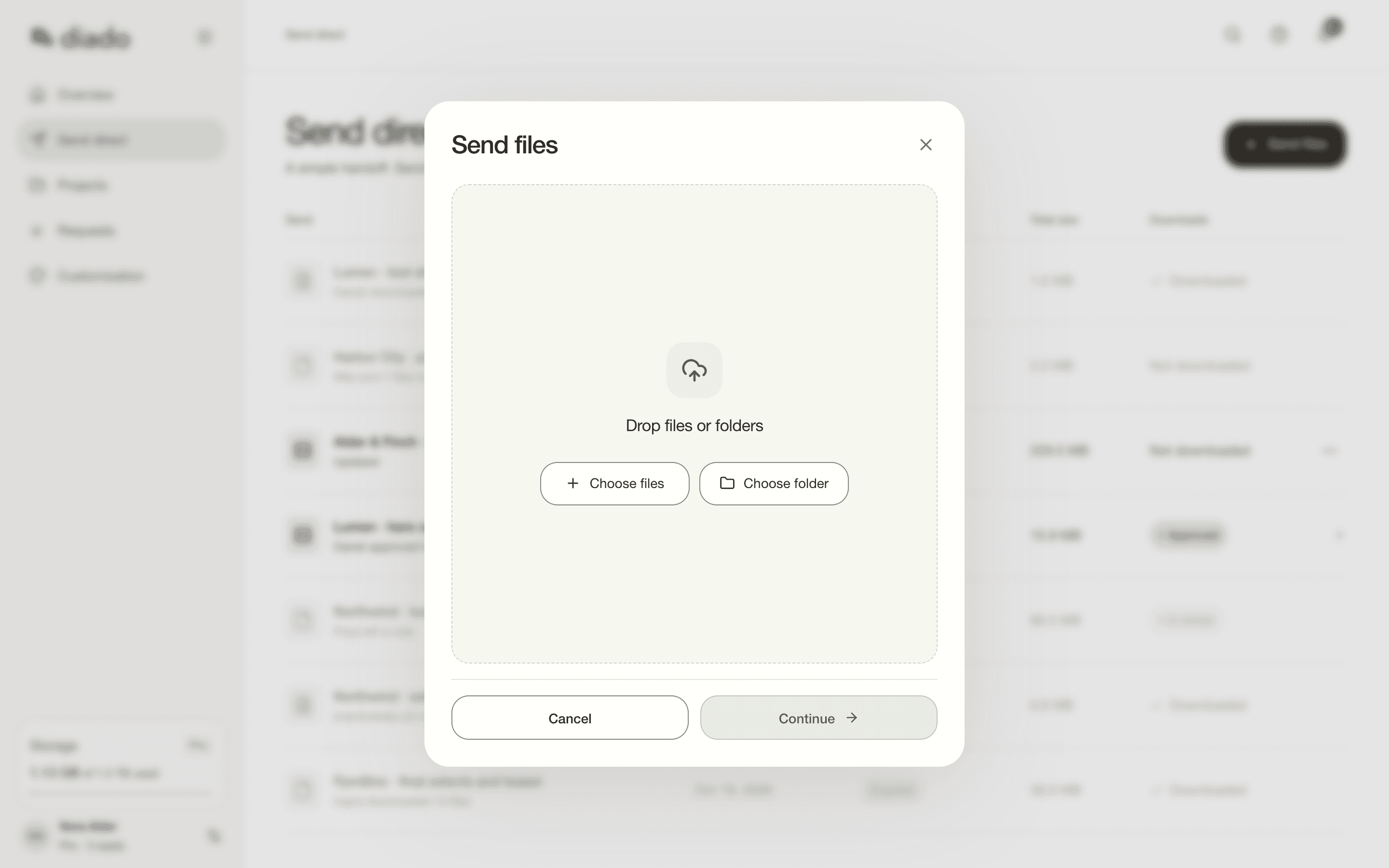
Open Send direct and select Send files. Drop files or folders into the dialog, or select Choose files or Choose folder. Select Continue to open Delivery details.
Check the file list before continuing. Folders keep their structure in the delivery.
2. Choose the delivery method
Choose Email to have Diado send the download link to your recipients, or Get a link to share it yourself. Email sends support up to 20 recipients.
Give the send a title and add an optional one-line message of up to 120 characters. Choose a Download page template if you want a particular look.
3. Set availability and send
Use Available for to set an expiry of up to 30 days. Open More options to add a password or enable Delete after all files are downloaded. Select Send files for an email delivery or Create link to share the link yourself.
Keep the browser tab open until the upload finishes. Copy the link or check the email delivery status. You can reopen the delivery from Send direct.
Send direct lists every send with the date it went out, its expiry, total size, and downloads. Use a row’s menu to open the send, copy its link, or expire it early. Copy link is available for sends created with Get a link; email recipients each have their own link.