Set a default or change a page’s template
Set your usual page design, or choose a different template for one send, project, or request.
In this guide
Set an account defaultChoose a design for a specific pageEditing or deleting a templateSet an account default
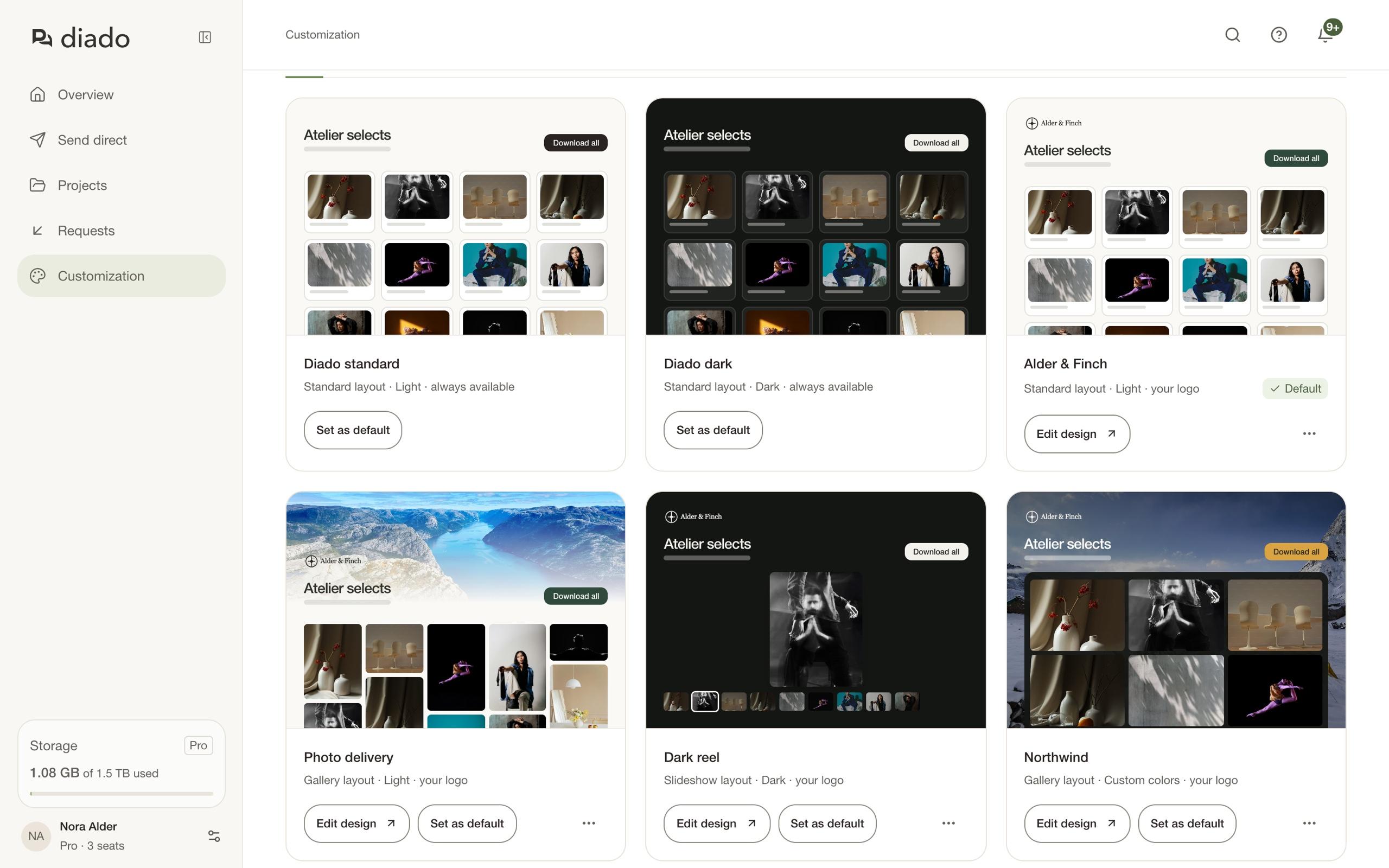
Open Customization and select Pages. Choose Set as default on the template you want to use. Your team uses the same template library.
Diado standard and Diado dark can also be the default.
Choose a design for a specific page
Choose Download page when sending files, Shared page appearance in project sharing settings, or Upload page when editing a request.
Select a template for that page to give it a different design while keeping the account default.
Editing or deleting a template
Changes to a saved template appear on pages using it. Open one of those pages after saving to check the result.
If a template is deleted, the page falls back to the account default, then to Diado standard. Templates change presentation, not who can access the files.