Organize project files and folders
Create folders, rename files, and move items within a project.
In this guide
Create and name foldersMove files into placeSort the file listKeep revisions with the originalCreate and name folders
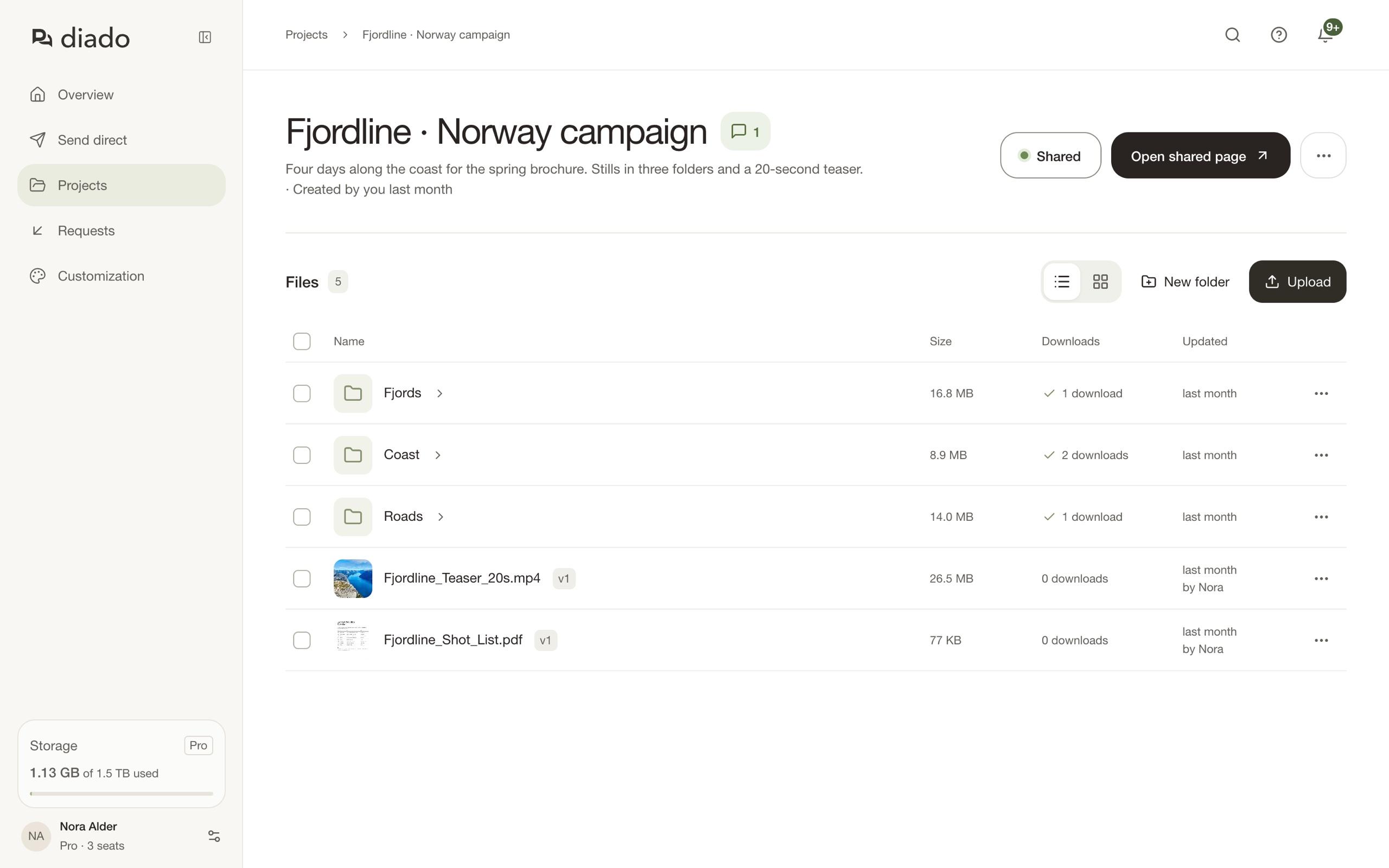
Open the project and choose New folder. Give it a useful name, such as Footage or Final exports, and confirm with Create folder.
Open a file or folder’s menu to rename it. Folder names also appear on the shared page, so choose names your client will recognize.
Move files into place
Select the items you want to move and choose Move, or use Move to… from an item’s menu. Choose the destination folder and select Move here.
You can also drag items: drop one on a folder to move it, or between two items to change their order. Check the destination before dropping a group of files.
Sort the file list
In the list view, click a column heading (Name, Size, Downloads, or Updated) to sort by it. Click again to reverse the order, and a third time to return to your own order.
Your own order is the one you set by dragging, saved for each folder. In the tile view, use the File order dropdown to choose Manual order, Name, Size, or Updated.
Keep revisions with the original
Select Upload new version from a file’s menu to add a revision to that file. Renaming or moving a file does not add a version.
Before deleting a duplicate, check which item holds the feedback and versions you need.