Create a page template
Save a page design to use for sends, shared projects, and upload requests.
Open the template library
Open Customization, select Pages, then choose New template. Give it a name you will recognize when choosing a design.
Diado standard and Diado dark are built in. They can be selected as defaults but are not editable, and they do not count toward your custom-template limit.
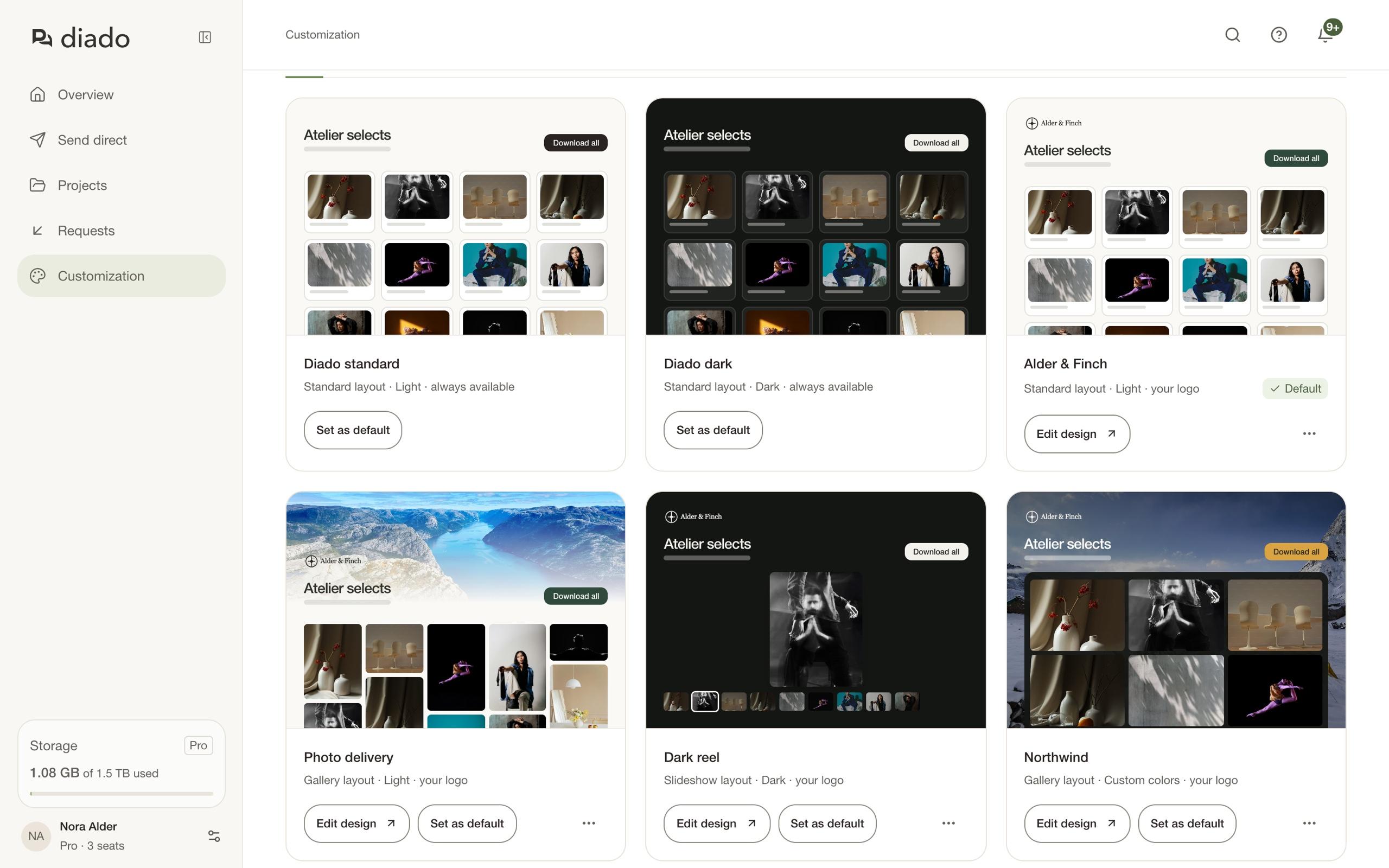
Design with the live preview
Choose a layout and theme, then adjust colors, tile settings, and any branding images available on your plan. Use desktop and phone preview sizes to check the result.
The preview shows sample files. Check that file names and buttons are readable at both screen sizes.
Save and apply the template
Save the template, then select it for a send or shared project. You can also set it as your account default.
Free includes one custom template with layouts and colors. Pro adds unlimited templates and the ability to display custom logos and photos.