Collect feedback on your work
Turn on review so clients can leave comments, mark up images, and approve file versions.
In this guide
1. Enable review2. Share with your reviewers3. Leave feedback on a file4. Upload a revisionKeep team comments private1. Enable review
Open your project’s sharing settings and create a link if you don’t have one. Turn Comment and review on.
Choose whether to leave Download files on. People can review without being allowed to download the original files.
2. Share with your reviewers
Copy the Project link and send it to the people reviewing the work. They don’t need a paid seat or a Diado account.
Guests enter their details before leaving feedback, so you can see who wrote each comment.
3. Leave feedback on a file
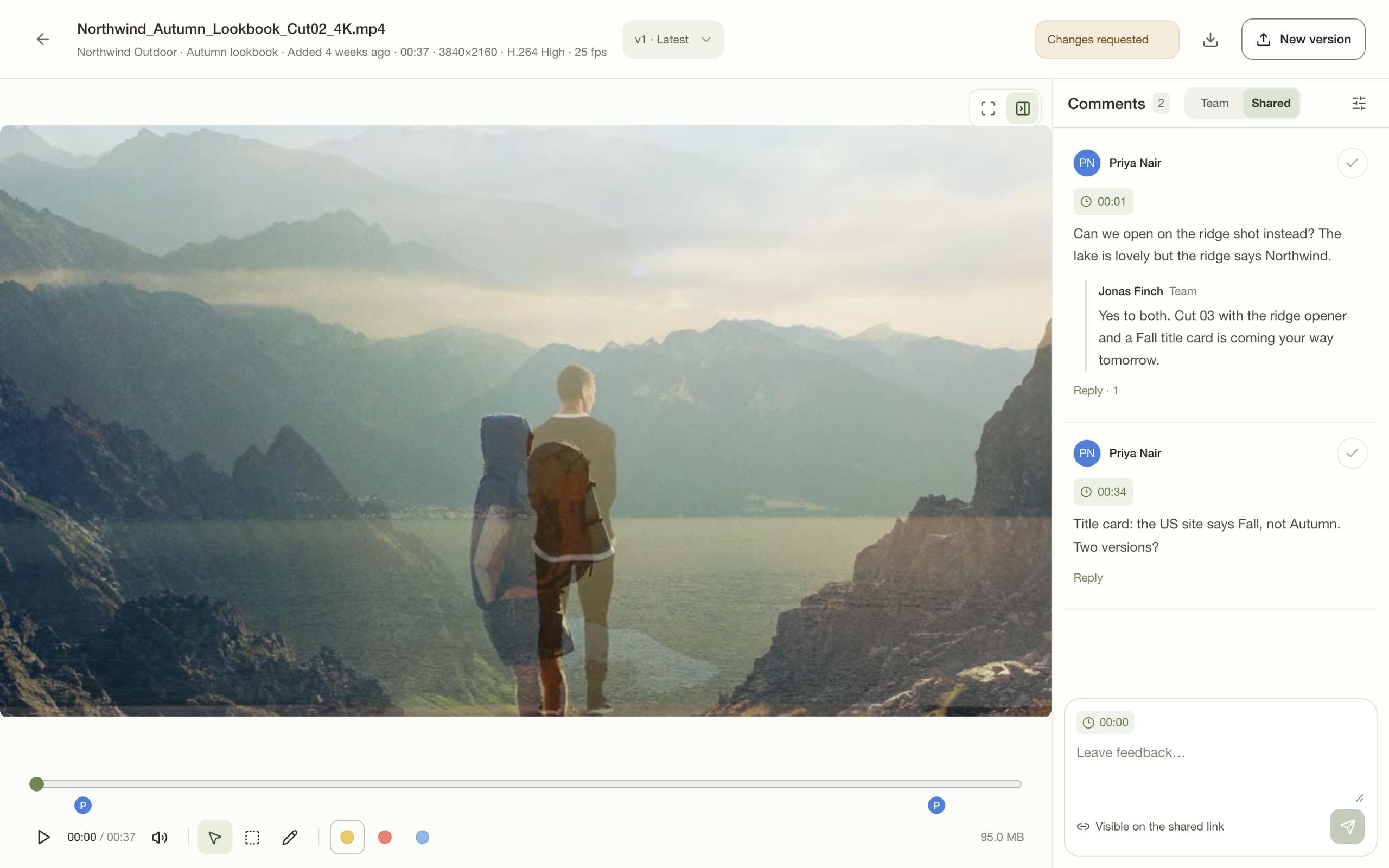
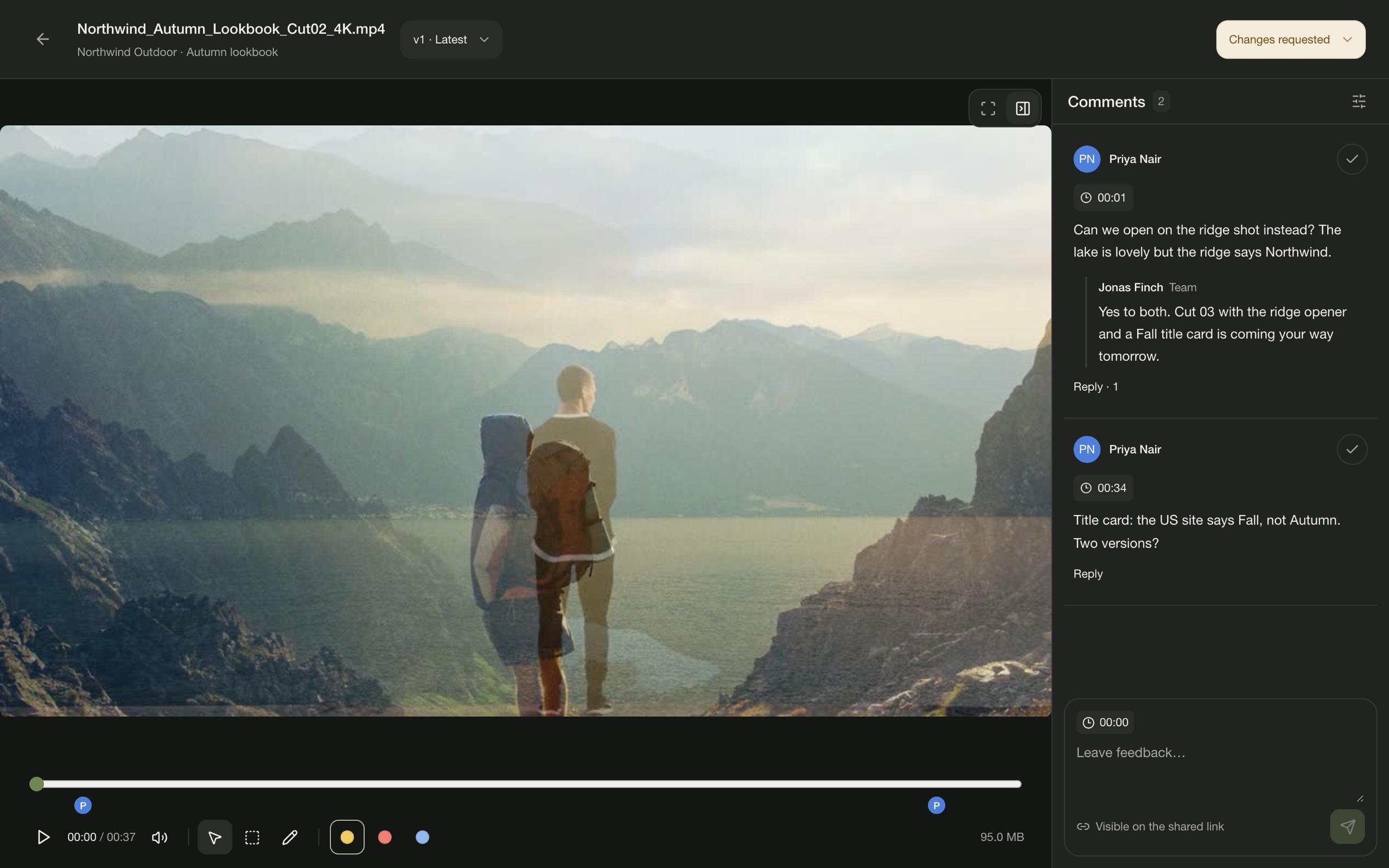
Open a file on the shared page to review it. For video, pause at the moment you want to discuss and add a comment there.
Use the annotation tools to mark the area you mean. Reply to the comment to continue the discussion.
4. Upload a revision
Upload the next cut as a new version of the same file. Earlier versions and their feedback remain available, so you can check what changed.
Review decisions belong to a particular version. An approval on an earlier cut isn’t an approval of a later upload.
Keep team comments private
You and your teammates get a Team / Shared switch beside the comments. Team comments are visible only to people in your account. Shared comments appear on the shared page, where guests can read and reply.
A file you open inside the project starts on Team; the shared page starts on Shared. The line under the comment box shows who will read what you post: Only your project team or Visible on the shared link.
A comment can’t be moved between Team and Shared afterward, so check that line before posting.