Share a project for downloads
Share a project link so clients can browse and download files. Leave review switched off.
In this guide
1. Create the project link2. Set what guests can do3. Check the shared page4. Copy and shareTurn sharing off1. Create the project link
Open your project and its sharing settings. Select Create link if the project isn’t shared yet.
Use the existing link if the project is already shared. Files you add later appear on the same page.
2. Set what guests can do
Under Guests can, switch Download files on and leave Comment and review off.
Recipients can browse and download without creating a Diado account. With comments off, the shared page doesn’t ask them to review or approve files.
3. Check the shared page
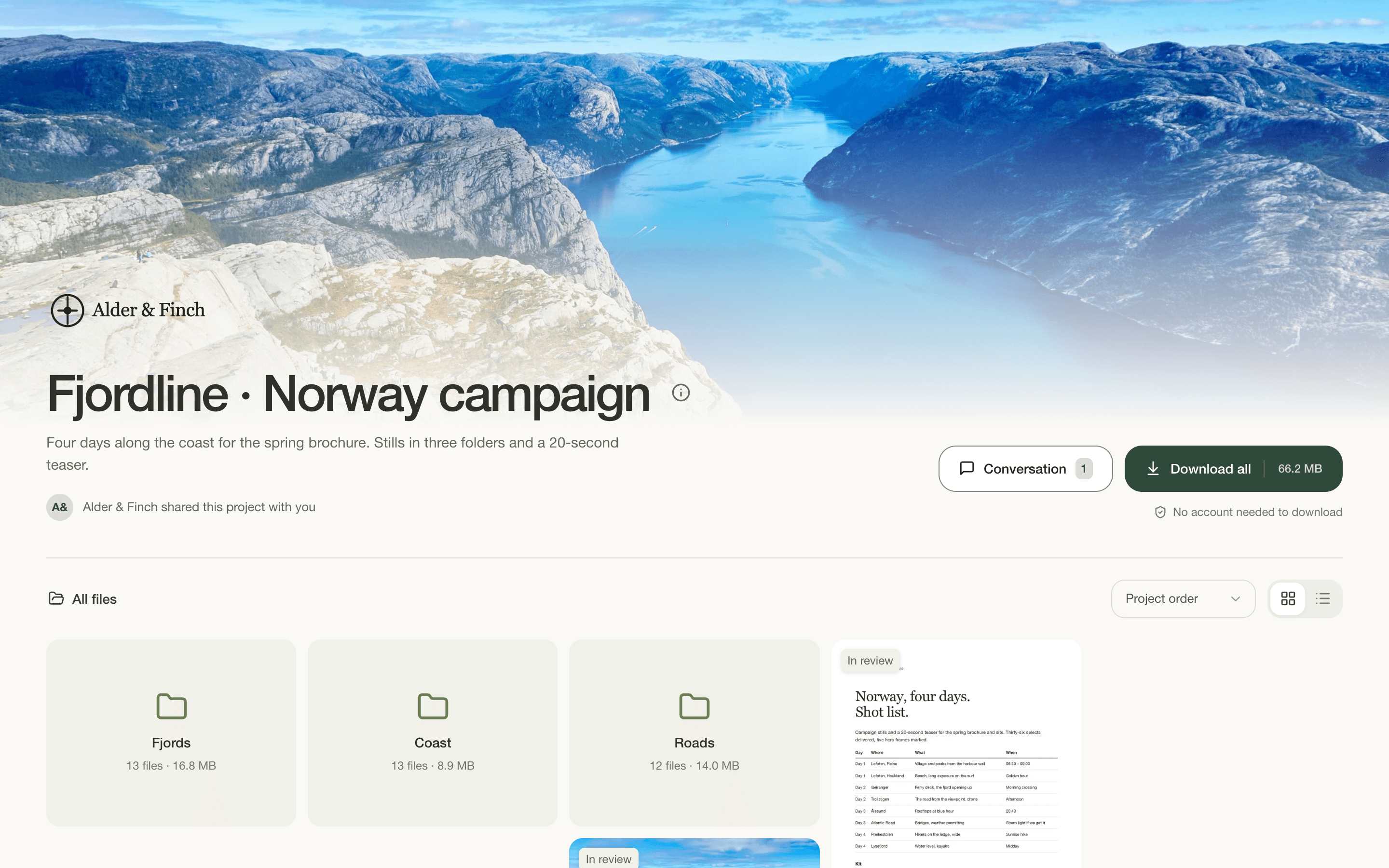
Choose a template under Shared page appearance if you want to change how the page looks. Then select Open shared page to preview it.
Check that the right files and folders are there before sending the link.
4. Copy and share
Copy the Project link and send it by email or in your usual chat. The page stays connected to the project, so files you add later appear there too.
If you need feedback later, turn Comment and review on in the same sharing settings.
Turn sharing off
Open the sharing settings, select Turn off link, then confirm Turn off for everyone. The link stops working immediately; existing comments stay with the project.